Go to the Customer Portal
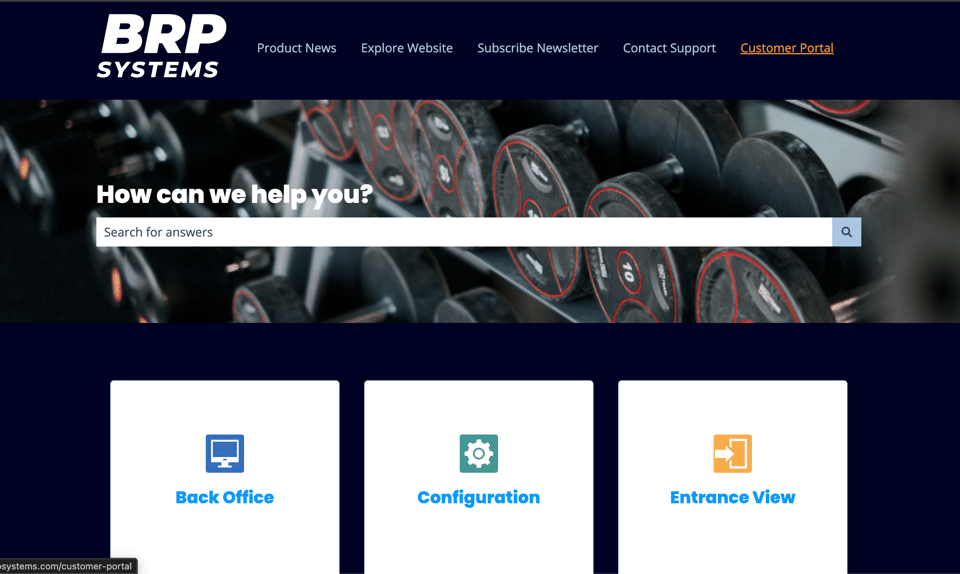
Open your web browser and navigate to the BRP Systems Knowledge Base. Click on Customer Portal in the menu.
Guide
.png?width=1000&height=563&name=Copy%20of%20Photos%20%20Videos%20(11).png)
The BRP Systems Support Portal is a secure, login-protected area where you can manage all of your support tickets in one place. Once you have an account you can:

Navigate to the Support Portal URL.
Enter your registered email address and password.
Click Sign in. You will land on the ticket listing page.
Sign out:
To sign out, click Sign out in the top-right corner of any portal page. For security, your session will also end automatically after a period of inactivity.
After signing in you will arrive at the Ticket Listing page - your home screen in the portal. This shows all support tickets associated with your account.
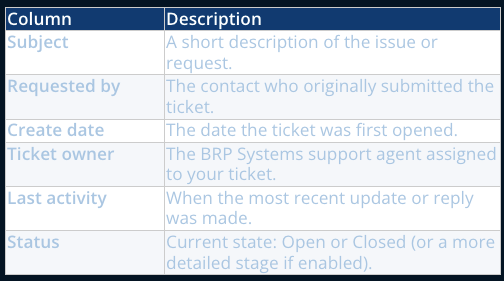
Each row in the ticket list shows the following information at a glance:
Use the search bar at the top to find a ticket by name or keyword.
Use the filter options to narrow down tickets by status, date, or other criteria.
If your organisation has company-level visibility enabled, click the View dropdown (top right) and choose Organisation tickets to see tickets raised by colleagues at your company, or My tickets to see only your own.


Click the subject name of any ticket in the list to open the Ticket Detail page. Here you can see:

To send a message to the support team from within a ticket:
Click the ticket name from the listing page to open the detail view.
Scroll to the reply box at the bottom of the conversation. Type your message in the text field.
Use the attachment icon in the toolbar below the text box to include files if needed. Common formats such as PDF, images, and documents are supported.
Click Send (or the equivalent submit button). Your reply will be delivered to the BRP Systems support team and logged on the ticket timeline. You will receive an email confirmation.
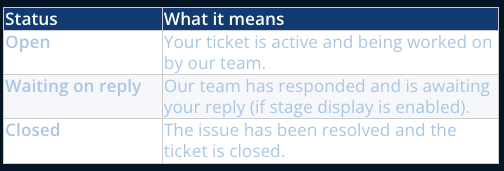
The status of your ticket is shown on both the listing page and the detail page. Possible statuses are: